I'm receiving a "Couldn't access camera" error when performing an Identity Verification
Overview
If you received an error message during the Identity Verification flow saying "Couldn't access camera", you will need to enable camera permission for your device and/or browser in order to proceed and complete the Identity Verification process.
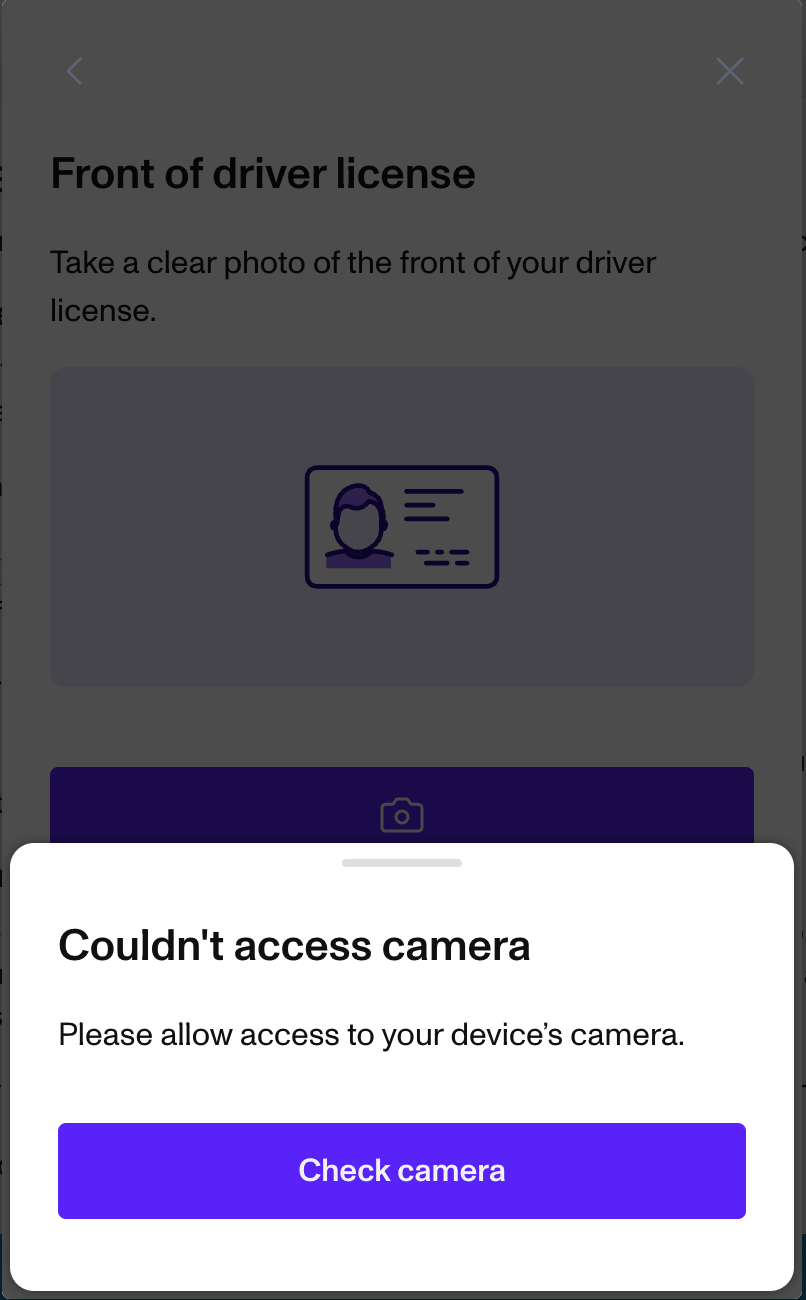
How you enable camera permissions depends on your browser and device type.
If you're using Chrome
Follow the steps in the relevant link below:
For Desktop
For iPhone & iPad
For Android
If you're using Safari
Follow the steps in the relevant link below:
For Desktop
Follow the relevant steps below:
For Mobile
- Open the Settings app
- Go to Apps
- Find Safari
- Scroll down and click into Camera

- Set to Allow (or Ask)

Still having issues?
If you still require further assistance, please feel free to reach out to support@ilumin.ai or call 1-604-256-6116 ext 3 and include details about your phone's device and model - we'll be glad to help you out.