Enabling Camera Permissions for the Iluminai Mobile App
Allow the Iluminai Mobile App to have access to your phone's camera.
Enable camera permissions
To be able to perform Identity Verifications successfully using the Iluminai Mobile App, you'll need to enable the app to have access to your phone's camera.
How you enable camera permissions depends on your device type.
For iOS
Follow the relevant steps for your device below:
- Open the Settings app
- Go to Apps
- Find Iluminai
- Ensure Camera is switched ON

For Android
Follow the relevant steps for your device below:
- Open the Settings app
- Go to Apps
- Find Iluminai
- Click Permissions

- Select Camera
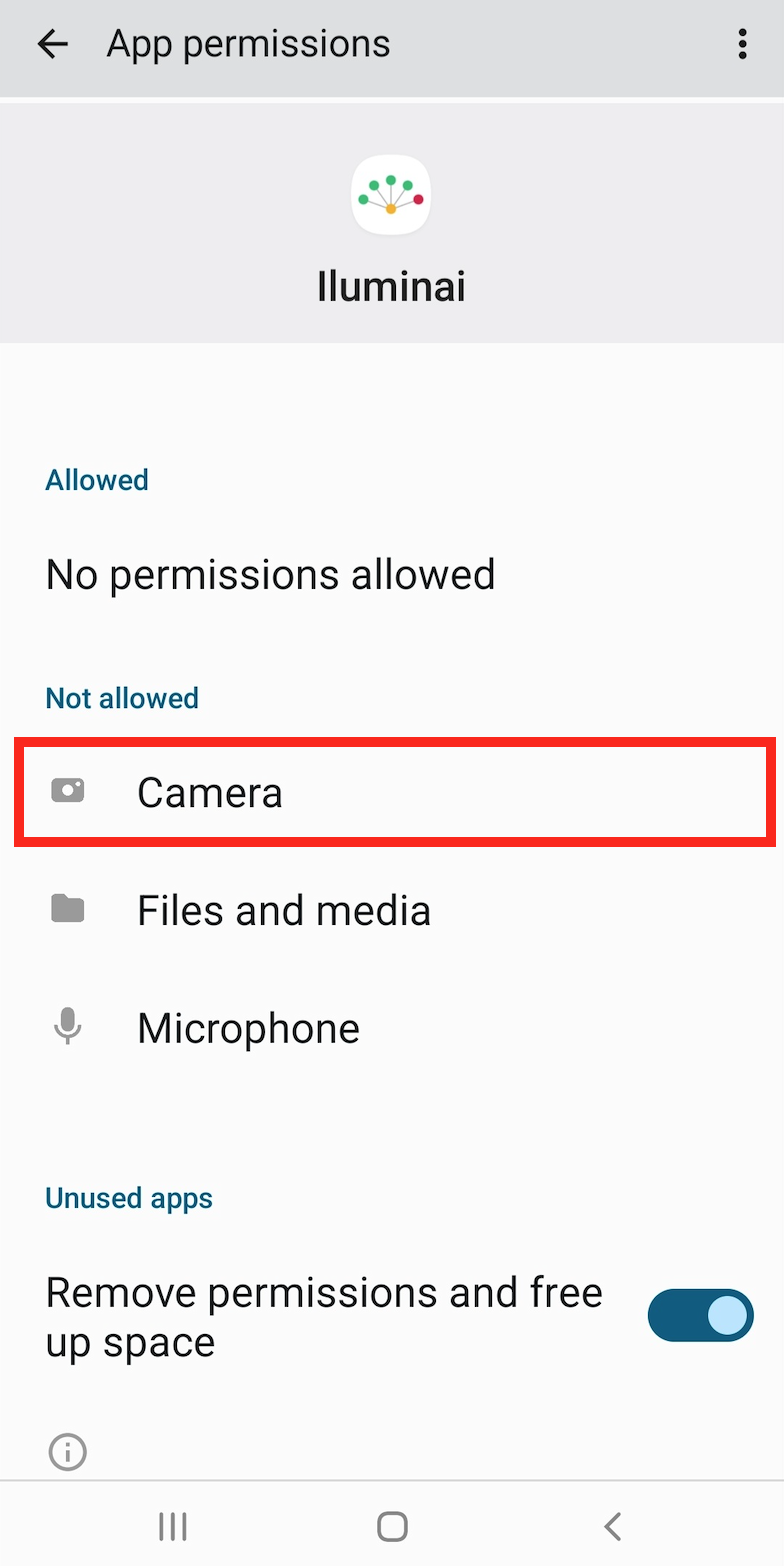
- Set to Allow only while using the app
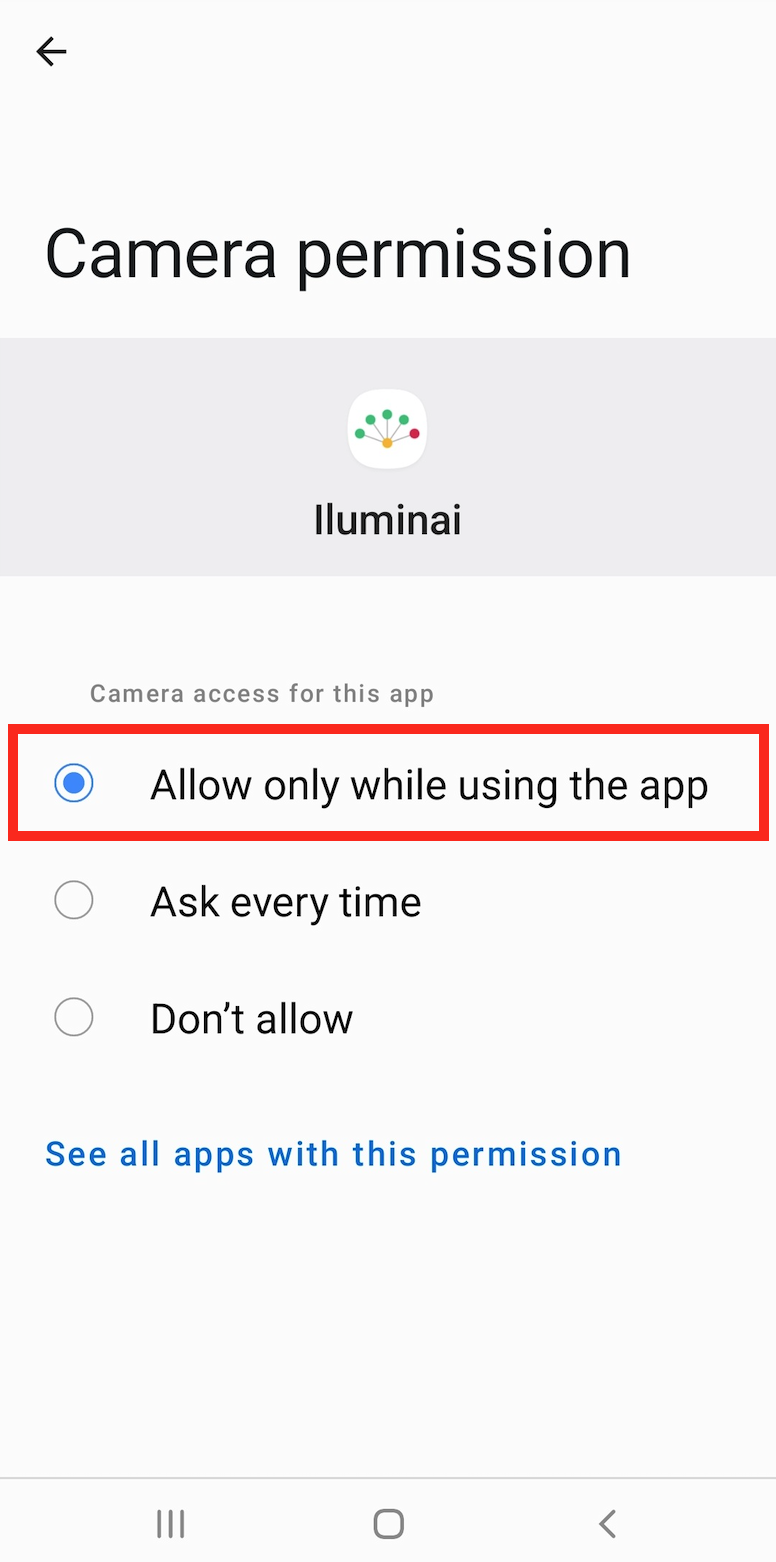
Note: The screenshots and steps above are for a Samsung Galaxy S10+ (Android version 12) device. The steps may be different to your specific model of phone, in that case you can Google search for:
"How to enable Camera permission for an App for *insert device model*"
Still having issues?
If you still require further assistance, please feel free to reach out to support@ilumin.ai and include details about your phone's device and model - we'll be glad to help you out.